
Store

Footprint Calculator


To begin, enter the dimensions of your room.
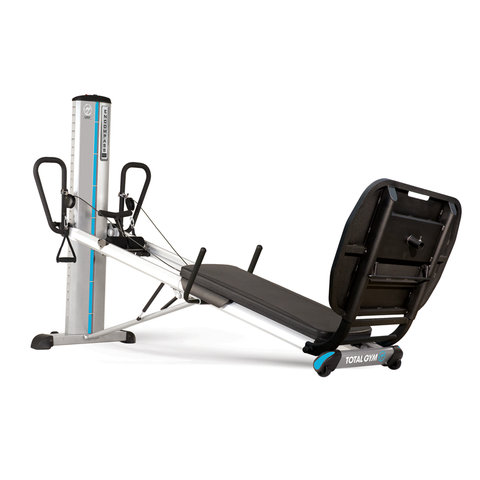
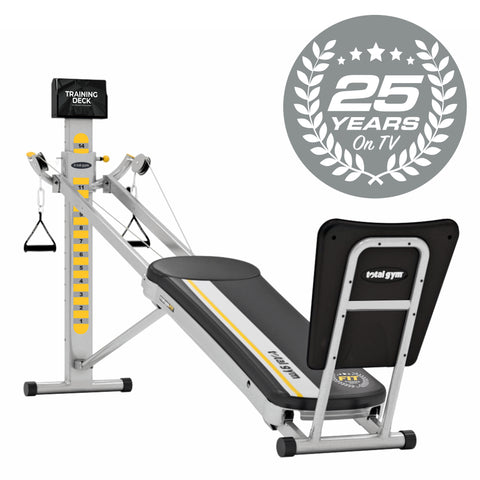
Click and drag the unit into the room area and release the mouse to place your gym.
You may place as may Gyms as you would like.

Clicking the unit once enables the features to manuevar and modify the placement of your gym.

Manipulate
Use the "Manipulate" icon to rotate your gym. Once you have activated this feature, click on any circle to rotate the gym to your desired specification. Clicking anywhere on the gym will allow you to move the gym within your room dimensions.

Move
Use the "Move" icon to move your gym within your room dimensions.


Remove
Use the "Remove" icon to remove the gym from your work area. 


Walls
The "walls" element located with the gym and clear element can be used to emulate walls or furniture in your room. After dragging the element to your work-area click on it to activate the features. Click "Manipulate" to bring up the modification elements. You will notice a "Square" like object in the left corner.
  • The "Square" object will allow you to resize and stretch the object allowing you to simulate a wall or furniture.
  • The "Circle" object are used to rotate the element.
Click anywhere on the item to drag the piece to your desired location.


Room Example